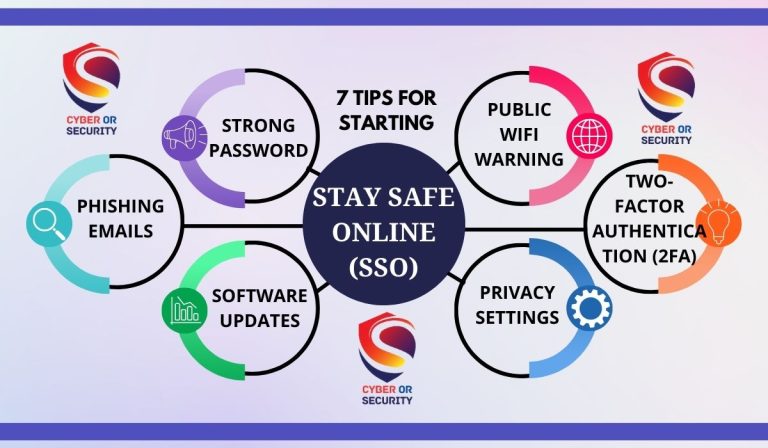
How to secure home WiFi starts with your router. If your router still uses a default password, old security settings, or outdated firmware, your home network may have weak spots you can fix today.
The same is true for smart TVs, cameras, speakers, thermostats, and other IoT devices connected to your network.
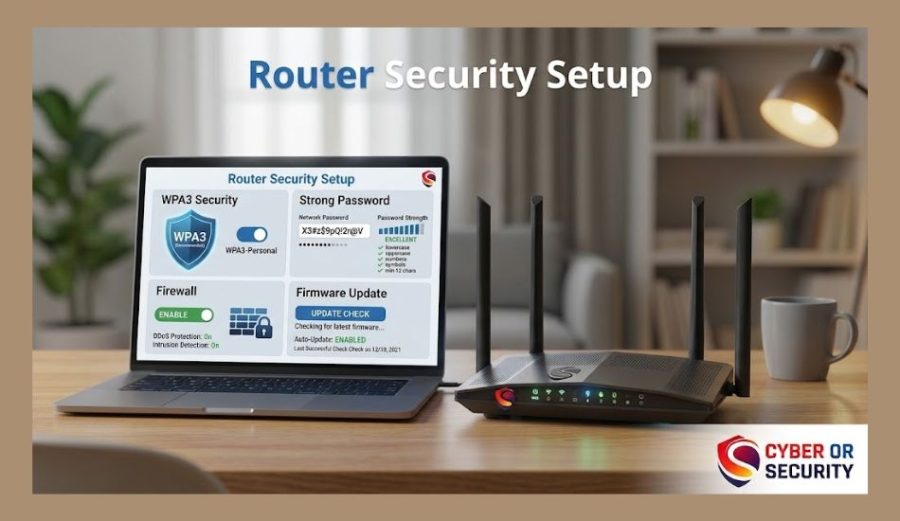
You do not need to be a networking expert. Start by securing your wireless router, changing the router admin password, and creating a strong Wi-Fi password.
Then check whether your router supports WPA3 encryption and, if it does not, use WPA2 instead of older security methods.
Keep the router firmware updated, make sure the firewall is on, and turn off remote management if you do not need it.
Your next step is to review the connected devices on your home network. If you see an unknown phone, computer, camera, or smart home device, investigate it.
A separate guest network can also keep visitors and some IoT devices away from your main network. For privacy on public Wi-Fi, a trusted VPN can provide another layer of protection.
These simple changes can make your home network security much stronger in 2026 without making your home internet hard to use.
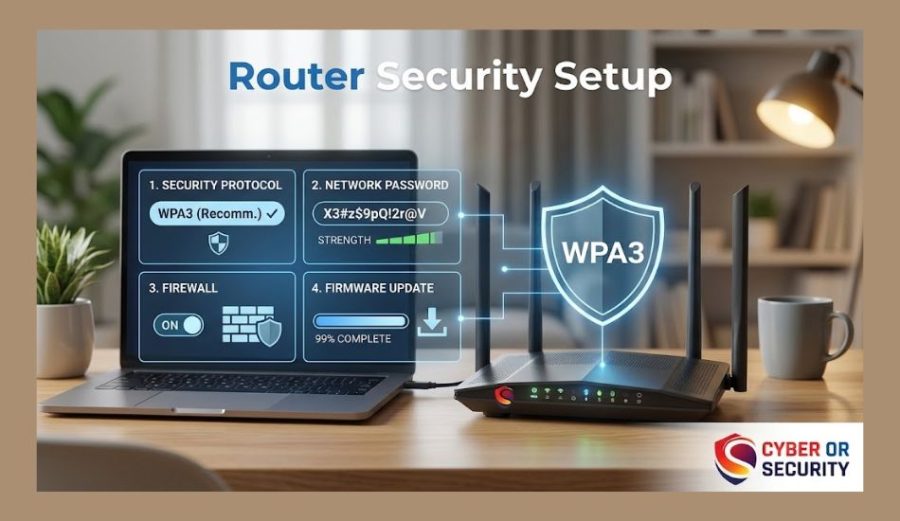
Is Your Home WiFi Secure? How to Protect It in 2026
Your home WiFi connects much more than your phone or laptop. Smart TVs, security cameras, speakers, game consoles, and other IoT devices may also use the same network.
If your router has a weak password, old firmware, or outdated WiFi security, one weak point can put other connected devices at risk.
In 2026, you can improve your home network security by using WPA3 or WPA2, setting strong and unique passwords, keeping your router updated, enabling its firewall, and turning off remote management when you do not need it.
You should also check your connected-device list and use a guest network for visitors or less-trusted smart devices.
These steps give you a stronger home WiFi setup without requiring advanced technical skills.
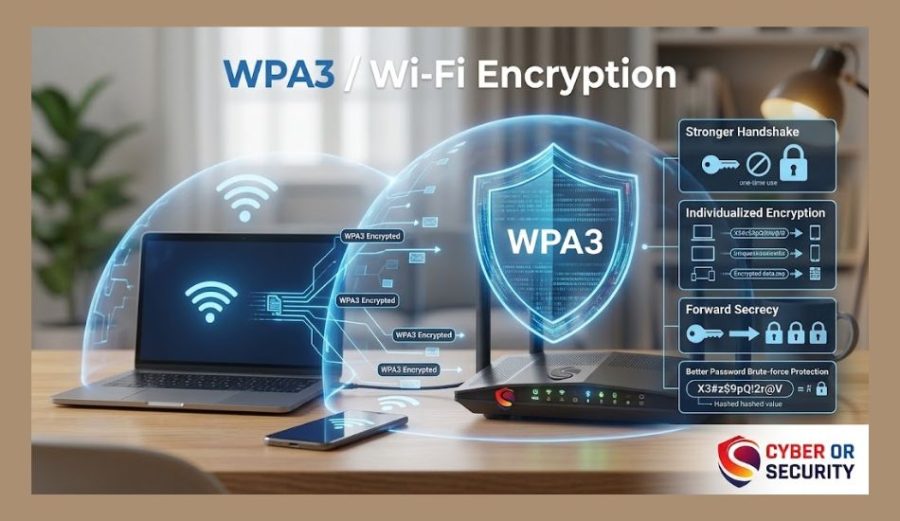
1. Check Your Current Wi-Fi Security
Before you change anything, check how your home network is set up.
Log in to your wireless router and open its settings page. The exact menu name can differ by router brand, but look for sections such as Wi-Fi, Wireless, Security, or Network.
Check these settings first:
- Wi-Fi security: Look for WPA3 or WPA2.
- Wi-Fi password: Make sure you are not using the default password.
- Router admin password: Check that it is different from your Wi-Fi password.
- Firmware: Check for available router updates.
- Remote management: Turn it off if you do not need it.
- Connected devices: Look for devices you do not recognize.
If you find an old security option such as WEP, do not keep using it. Your router may need an update or replacement.
Also check the device list. You may see phones, laptops, game consoles, smart TVs, cameras, and other IoT devices. If you cannot identify a device, check it before allowing it to stay connected.
This quick check shows you where your home network security needs attention. Once you know the weak spots, you can fix them one by one.
2. Change Your Router Admin Password
Your router has an admin password that controls its settings. If someone gets this password, they may be able to change your Wi-Fi security, DNS, firewall, or other network settings.
Change the default admin password as soon as you set up your router.
- Open your router’s admin page.
- Find Administration, Account, or Router Settings.
- Replace the default password.
- Use a long, unique password.
- Do not use your Wi-Fi password for the router admin account.
- Save the new password in a password manager.
Avoid simple choices such as your name, address, phone number, or admin123. A unique password makes it much harder for someone to guess their way into your router settings.
If your router does not let you change the default admin password, check the manufacturer’s support information. For an old router with poor security controls, replacing it may be the safer choice.
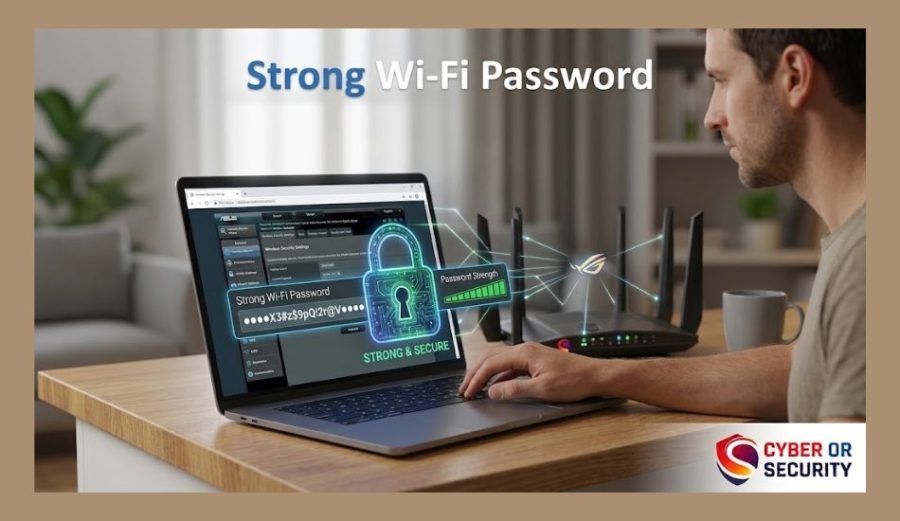
4. Create a Strong Wi-Fi Password
Your Wi-Fi password is the main key to your home network. A weak password can make it easier for someone nearby to guess or gain access.
Create a password that is long, unique, and hard to guess.
- Use at least 12 characters.
- Use a mix of words, numbers, and symbols.
- Avoid your name, address, birthday, or phone number.
- Do not use common passwords such as password123.
- Do not reuse a password from another account.
- Change it if you think someone else knows it.
A passphrase can be easier to remember than a short, complex password. For example, you could use several unrelated words with numbers or symbols between them.
Your Wi-Fi password should also be different from your router admin password. This gives you another layer of protection if one password is exposed.
Once you change the password, reconnect your phones, laptops, smart TVs, cameras, and other IoT devices. If an old device cannot connect, check that you entered the new password correctly before changing other security settings.
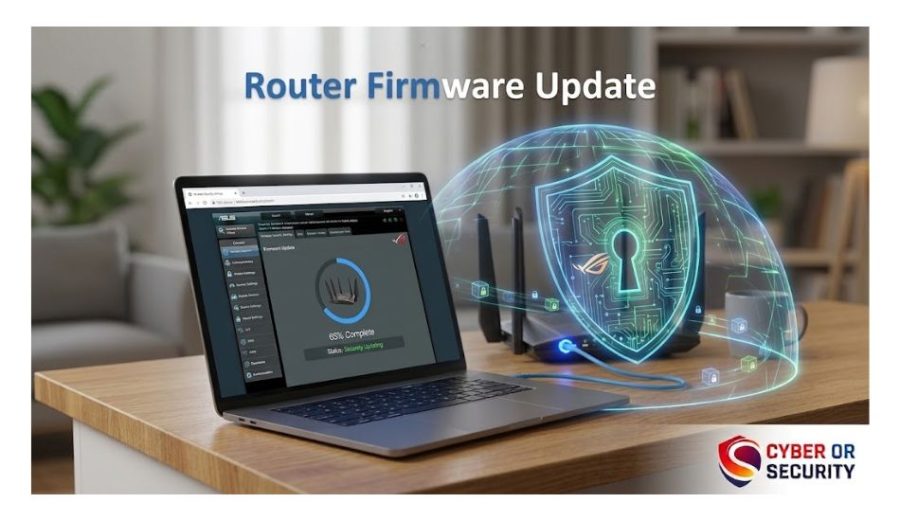
5. Update Your Router Firmware
Your router needs updates just like your phone or computer. Firmware updates can fix security problems, improve stability, and sometimes add newer security features.
Check your router settings for Firmware Update, Router Update, or Software Update.
- Check for the latest firmware.
- Install updates from the router manufacturer.
- Turn on automatic updates if your router supports them.
- Do not turn off the router during an update.
- Check the update status after it finishes.
Do not ignore an old router that has stopped receiving security updates. Even if your Wi-Fi still works, unsupported firmware can leave known security flaws unfixed.
If your router is several years old and the manufacturer no longer provides updates, consider replacing it with a model that supports WPA3, automatic updates, and current home network security features.
6. Turn Off Remote Router Management
Remote management lets you access your router settings from outside your home network. While it can be useful in some cases, most home users do not need it.
If you leave it enabled without a clear reason, you create another way to reach your router’s admin panel.
Open your router settings and look for Remote Management, Remote Administration, or a similar option.
- Turn it off if you do not use it.
- Check whether remote access is enabled through an app or cloud service.
- Keep the router’s admin account protected with a unique password.
- Do not expose the router’s admin page directly to the internet.
After disabling remote management, you should still be able to manage the router from devices connected to your home network.
This small change can reduce the number of ways an attacker could try to reach your router and improve your overall router security in 2026.
7. Turn On the Router Firewall
Your router firewall helps block unwanted network traffic before it reaches devices inside your home network. It is an important part of home network security.
Open your router settings and look for Firewall, Security, or SPI Firewall.
- Make sure the firewall is enabled.
- Keep the default protection settings unless you know why a change is needed.
- Avoid opening ports unless a service or device truly requires them.
- Remove old port-forwarding rules you no longer use.
- Check the settings after major router updates.
Be careful with port forwarding. Opening a port can make a device reachable from the internet. If you no longer need a game server, camera service, or other remote connection, remove its forwarding rule.
Your router firewall is only one layer of protection. Keep your computers, phones, smart TVs, cameras, and other IoT devices updated as well.
8. Create a Guest Wi-Fi Network
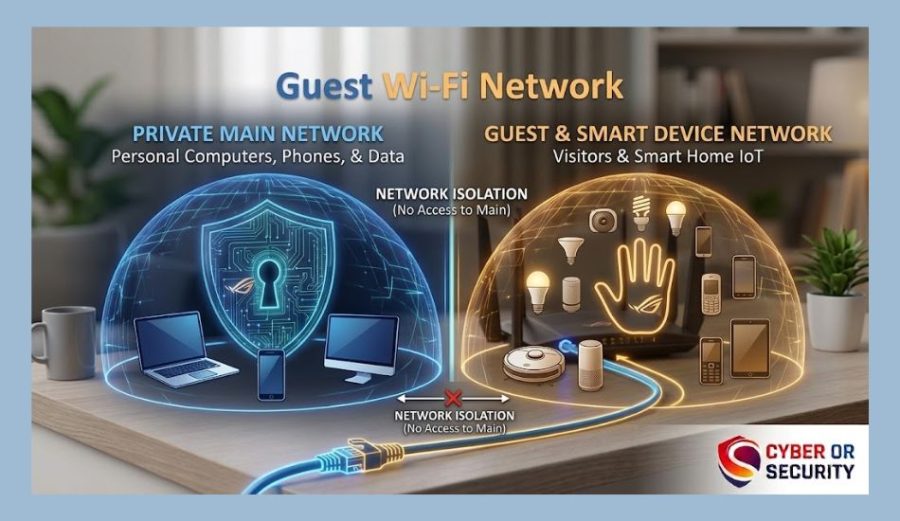
A guest network gives visitors a separate way to get online without joining your main home network.
This is useful when friends, family members, or other guests need Wi-Fi. It can also help you separate some IoT devices, such as smart TVs or smart plugs, from computers that hold important files.
Open your router settings and look for Guest Network or Guest Wi-Fi.
- Turn on the guest network.
- Give it a different Wi-Fi name.
- Use a separate strong password.
- Turn on the option that blocks guests from accessing your local network, if available.
- Do not share your main Wi-Fi password with guests.
Keep your main network for your personal computers, phones, and other trusted devices. Put visitors and less-trusted smart devices on the guest network when your router supports this setup.
This simple separation can limit what a compromised guest or IoT device can reach inside your home network.
9. Secure Your Smart Home and IoT Devices
Your IoT devices can also affect your home network security. A smart TV, security camera, smart speaker, thermostat, or smart plug may stay connected to Wi-Fi all day.
Secure each device you connect to your network.
- Change the device’s default password.
- Install available firmware and security updates.
- Remove apps or services you do not use.
- Turn off remote access when you do not need it.
- Remove old smart devices from your router.
- Put less-trusted IoT devices on a guest network when possible.
Pay special attention to security cameras and other devices that can be accessed from outside your home. Check their remote-access settings and use a strong, unique account password.
You should also replace IoT devices that no longer receive security updates. A device that still works is not necessarily a secure device.
Your router protects the network, but every connected IoT device is another part of that network. Securing each one helps reduce the risk of a weak smart device becoming a path into your home.
10. Check for Unknown Devices
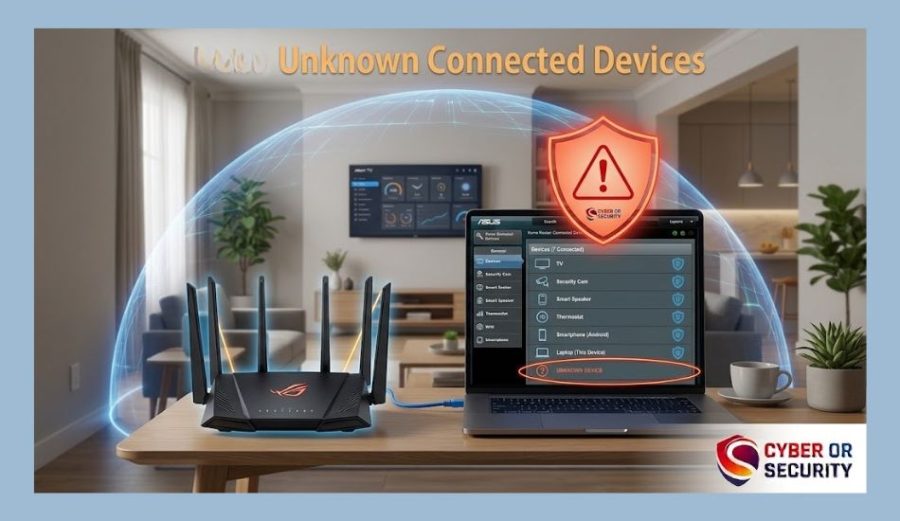
Open your router’s connected device list and check every device using your home Wi-Fi.
You may find phones, laptops, printers, game consoles, smart TVs, cameras, and other IoT devices. Make sure you recognize each one.
- Remove devices you no longer use.
- Block unknown devices when your router allows it.
- Check the device name and connection details.
- Change your Wi-Fi password if you find a device you cannot identify.
- Reconnect only your trusted devices after changing the password.
Do not assume every unfamiliar device is an attacker. Some routers use unclear names or show a device by its manufacturer instead of its owner’s name. Check your phones, computers, TVs, and smart home devices before blocking anything.
If an unknown device keeps appearing after you change your Wi-Fi password, check your router settings and review which devices have access to the network.
11. Protect Your Wi-Fi Privacy
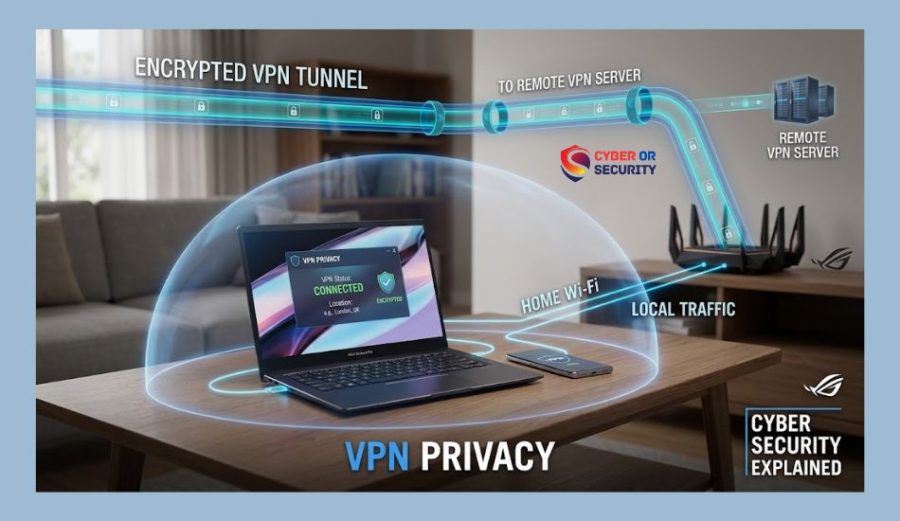
Your Wi-Fi security and your online privacy are related, but they are not the same thing. Securing your router helps protect devices on your home network. A VPN (Virtual Private Network) can add another layer of privacy when you connect to the internet.
For everyday home use:
- Keep your router firmware updated.
- Use WPA3 or WPA2 security.
- Use a strong, unique Wi-Fi password.
- Check which devices are connected.
- Use a trusted VPN when you need extra privacy.
- Avoid entering sensitive information on unsecured public Wi-Fi.
A VPN creates an encrypted connection between your device and the VPN service. This can help protect your traffic from local network observers, especially when you use public Wi-Fi.
However, a VPN does not secure your router or fix weak Wi-Fi settings. It also does not make you anonymous online.
For your home network, secure the router first. Then use a VPN as an additional privacy layer when it fits your needs.
12. Replace an Old or Unsupported Router
An old router can become a security problem when it no longer receives firmware updates.
Check your router before you decide to keep using it.
- Check when the manufacturer last released an update.
- Look for WPA3 support.
- Check for automatic firmware updates.
- Make sure you can change the admin password.
- Check that the router firewall is supported.
- Replace the router if security updates have ended.
You should not keep an unsupported router just because it still provides a strong Wi-Fi signal. Security support matters too.
When you buy a replacement, choose a router that receives regular security updates and supports modern home network security features.
This gives your home network better protection as new threats and IoT risks appear.
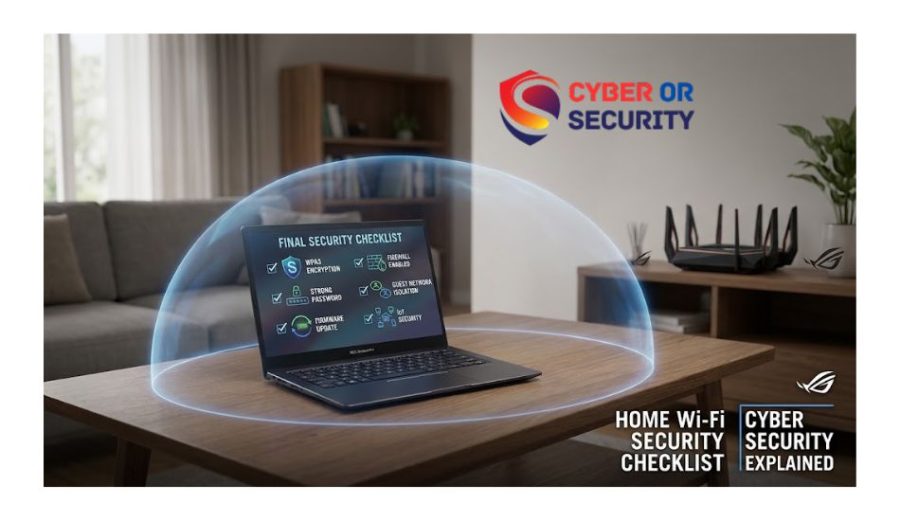
13. Home Wi-Fi Security Checklist for 2026
Before you finish, check these settings on your home network:
- Change the default router admin password.
- Use a strong, unique Wi-Fi password.
- Use WPA3 when supported.
- Use WPA2 if WPA3 is not available.
- Update your router firmware.
- Turn on the router firewall.
- Turn off remote management if you do not need it.
- Create a separate guest Wi-Fi network.
- Update your IoT devices.
- Change default IoT passwords.
- Check your router for unknown devices.
- Remove devices you no longer use.
- Replace a router that no longer receives security updates.
- Use a trusted VPN when you need extra online privacy.
Run through this list after setting up your router. You do not need to change everything at once. Start with the router password, Wi-Fi security, firmware, and connected devices. Then work through the remaining settings.
Final Steps to Secure Your Home Wi-Fi
Securing your home Wi-Fi does not have to be hard. Start with the settings that matter most: use WPA3 or WPA2, create strong passwords, update your router, turn on the firewall, and check your connected devices.
Then secure your IoT devices and use a guest network where it makes sense. If your router no longer receives security updates, replace it with a supported model.
Once these steps are done, your home network has a stronger security base for 2026. Check the settings again after major router updates or when you add new smart devices to your home.
Helpful article: How to Set Up a VPN on Windows 11 (Step-by-Step)
FAQs: How to Secure Home WiFi? A Simple 2026 Guide.
1. How do I secure my home Wi-Fi?
Use WPA3 or WPA2, create a strong Wi-Fi password, change the router admin password, update the firmware, enable the firewall, and remove unknown devices.
2. Is WPA3 better than WPA2?
Yes. WPA3 is the newer Wi-Fi security standard and provides stronger protection. Use it when your router and devices support it. WPA2 is still a useful option for devices that cannot use WPA3.
3. How often should I change my Wi-Fi password?
You do not need to change it on a fixed schedule if it is strong and private. Change it when you think someone else knows it, when you give it to people you no longer want to have access, or after a security problem.
4. Should I use a guest network?
Yes, if your router supports one. A guest network can keep visitors separate from your main devices. You can also use it for some less-trusted IoT devices.
5. How do I know if someone is using my Wi-Fi?
Check the router’s connected device list. Look for phones, computers, TVs, cameras, and other devices you recognize. If you find something unfamiliar, investigate it before blocking it.
6. Do IoT devices need extra security?
Yes. Smart cameras, TVs, speakers, thermostats, and other IoT devices can create security risks when they use default passwords or outdated software. Keep them updated and change their default passwords.
7. Does a VPN secure my home Wi-Fi?
No. A VPN mainly protects the connection between your device and the VPN service. It does not replace router security. Secure your Wi-Fi, router, and IoT devices first, then use a VPN as an additional privacy layer.